
A friend recently posted an image of a customized iPhone Lock Screen that I thought was intriguing, but when I hunted for instructions, I came up empty-handed. Disappointment fed initiative which begat a blog post and here we are. The following will provide detailed instructions anyone can follow to create their own customized Lock Screen.
Okay, but why? Well, it is good practice to lock your phone when it is not in active use, but if your phone is lost and someone finds it, they have no way to know who to return it to. Or what if you are in a car accident or faint at a party, will the people around you know who to contact? These are only a few good reasons to put basic contact information on the face of your Lock Screen.
The process is really quite simple. What I describe here is only one way, but should provide ideas to create your own solution. My solution uses a simple text note, but you could potentially do this with a photo or custom graphic as well.
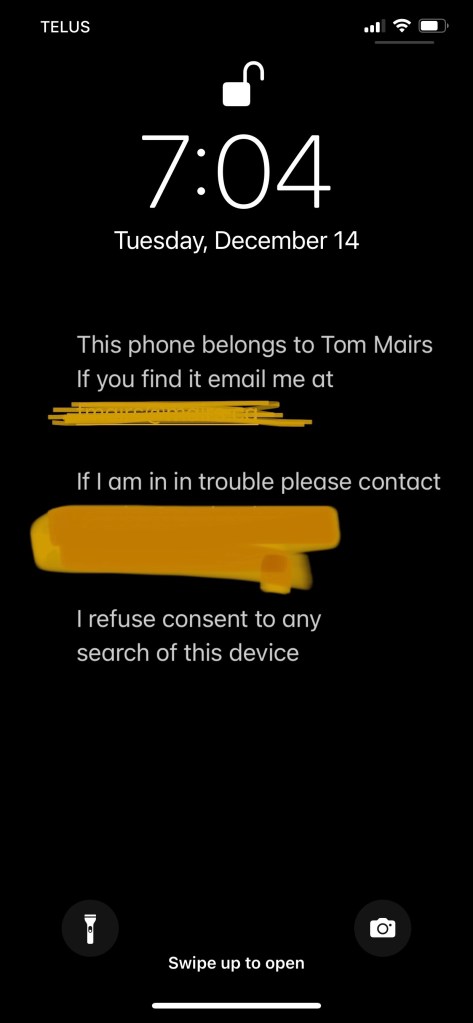
I started with a new note with my phone in “dark mode” so it has a black background. That was just my preference, you could easily use any background for this. The text of the note should include information about you and who to contact if necessary. Start with something like “My name is …” or “this phone belongs to …” and add emergency information like “If I am hurt, contact …”.
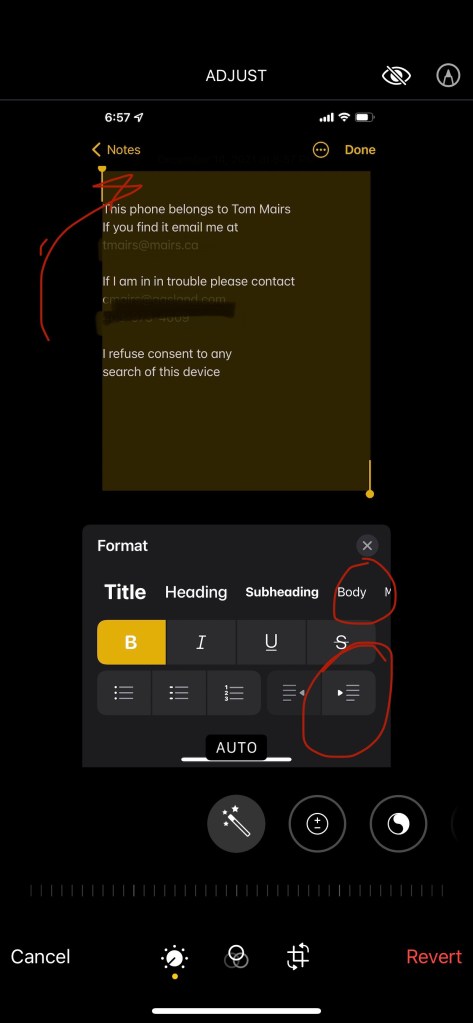
Once you have the wording all to your liking, add several blank lines to the top of the note to allow room for the clock to show when on the Lock Screen. It will also be more aesthetically pleasing to center or at least indent the wording on the page.
Having done all that, save the note then take a screenshot of it. Use the photo editing tools to crop out any of the edge “noise” so that you have a nice clean picture with your message in the lower half of the screen.
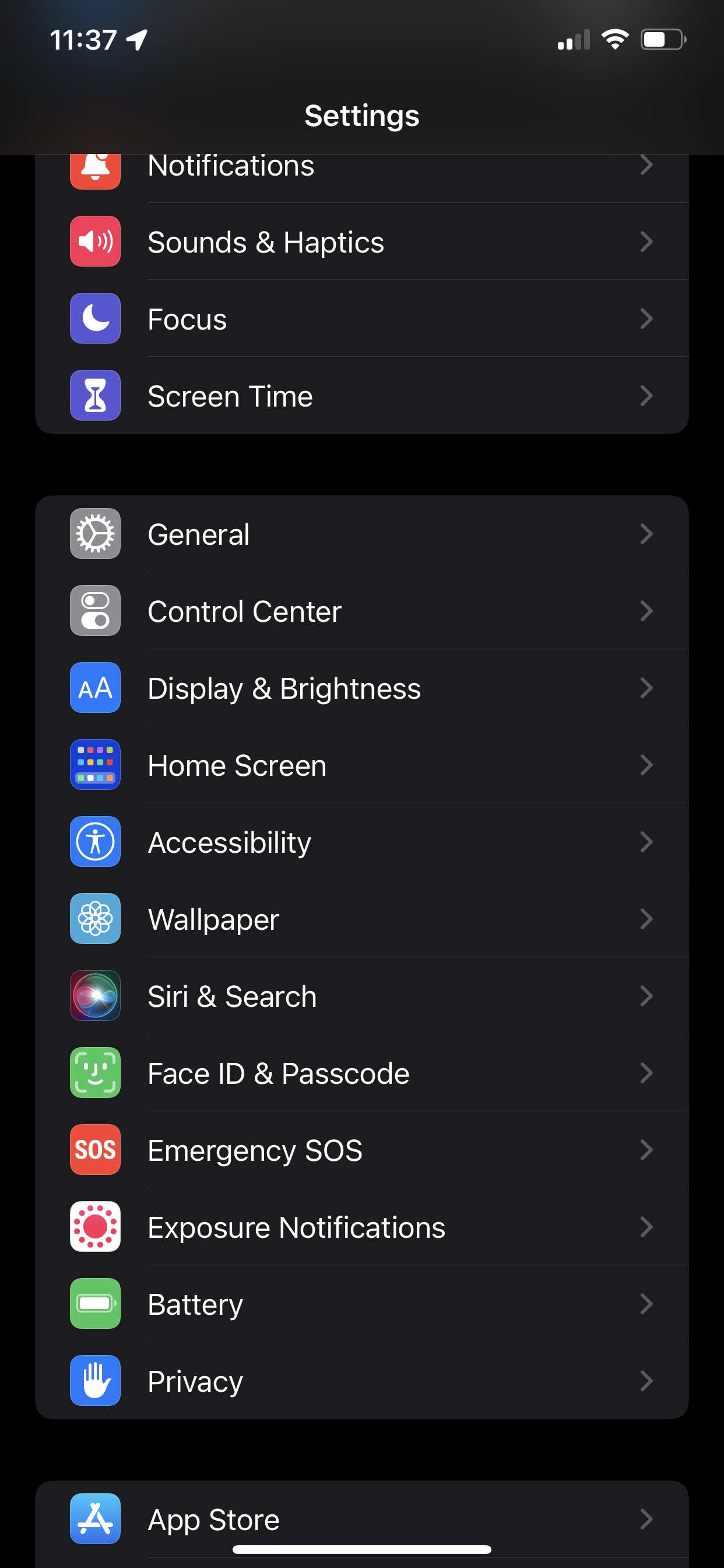
Now set the Lock Screen active by opening the Settings app, select “Wallpaper” choose your new image, and set it to “Lock Screen”, then SAVE. Note that if you have not set your passcode or Face ID yet, you should do that FIRST, or those options may not be available.

Now if you have done everything right, you should be able to lock your phone and see your message with the contact information you created.
If you found this useful, let me know.
 The Bleeding Edge
Leave a comment